Move and Copy Folder UI
Move a folder
Moving a folder is very similar to moving a group in Grouper. Directions with screenshots are available below.
Navigate to the folder you want to move
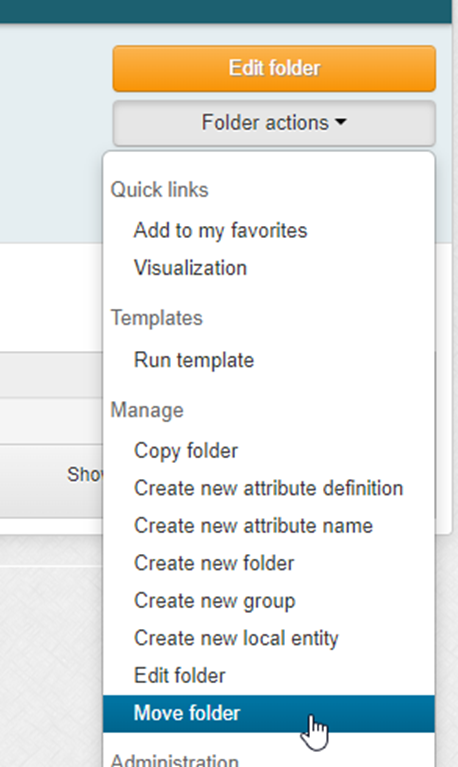
Select “Folder actions” and then “Move folder”
Enter the name of the destination folder and click on the correct auto-populated option
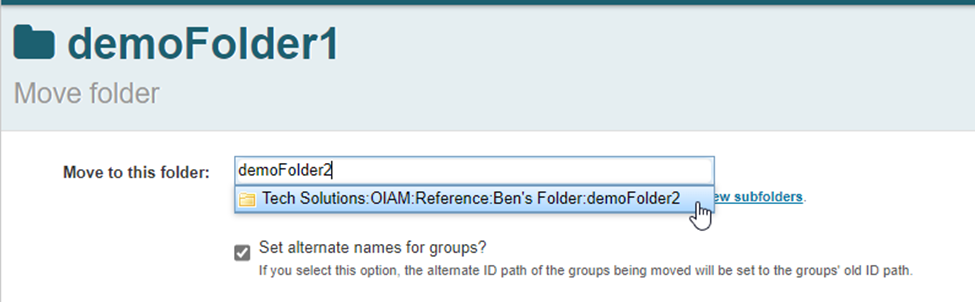
*** Setting alternate names for the groups will ensure that links to groups in the folder will not be broken, it is useful if the groups in the folder are already in useClick the move button

You will receive a notification that the move was successful

Copy a folder
Navigate to folder that you will be copying
Expand “Folder actions” drop down and select “copy folder”
Enter the name of the target folder and click on the desired result
Options to select from:
** The same options that are available via GSH/API are available here and depending on how the copied group will be used select/unselect the desired optionsClick “Copy”
You will receive confirmation that the folder was copied successfully